
Quick answer: how to install Minecraft horror mods
First decide whether you play Java Edition or Bedrock Edition. Java horror mods normally use a compiled JAR that matches a named Forge, Fabric, or NeoForge profile. Bedrock horror content normally arrives as an MCADDON or MCPACK package that must be imported and activated in the world settings.
Then create a separate profile, match the exact Minecraft version, read the project's dependency and client/server notes, install only the required files, and launch a new test world. If the mod does not appear, do not rename random archives or download an executable replacement; check the profile, loader, folder, and file extension first.
| Question | Java Edition | Bedrock Edition |
|---|---|---|
| Normal package | .jar compiled mod | .mcaddon or .mcpack add-on |
| Main compatibility check | Minecraft version + loader | Bedrock version + add-on format |
| Activation | Matching instance and mods folder | Import, then enable packs in world settings |
| Common mistake | Putting a Forge JAR in Fabric | Trying to import a Java JAR |
What you need before downloading
Use a project or release page that identifies the publisher, Minecraft version, loader or platform, file type, dependencies, changelog, and update date. Modrinth, CurseForge, and developer-controlled release pages can all be useful, but the file page must match the project you intend to install. A search result, video description, or countdown page is not enough evidence by itself.
Prepare a clean profile and back up any world you care about. Horror mods can add entities, sounds, structures, scripts, rules, or data that remain in a save after the mod is removed. A test world makes a failed experiment recoverable.
- The exact Minecraft edition and version
- A matching Forge, Fabric, or NeoForge loader for Java, when required
- The correct JAR, MCADDON, or MCPACK package
- Every dependency listed by the project
- A separate profile and a new test world
- A backup of important worlds and configuration files
Install horror mods on Minecraft Java Edition
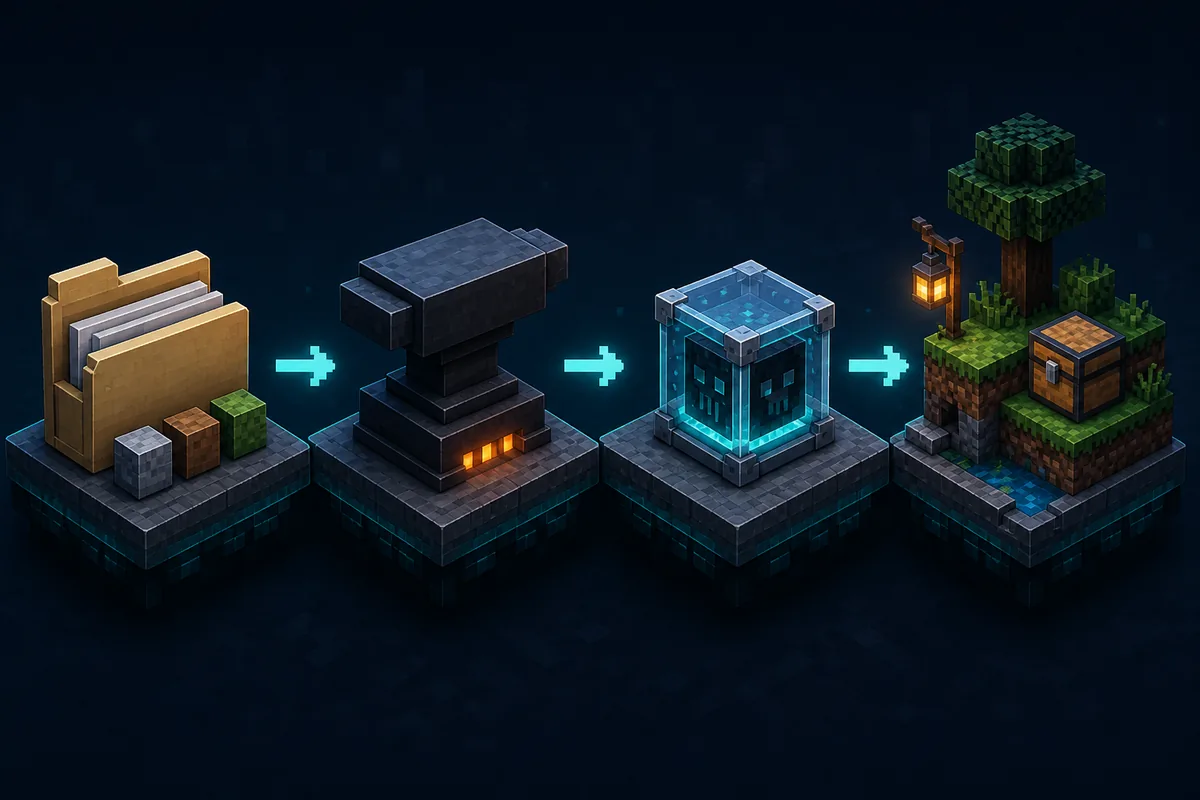
Java Edition installation is profile-specific. Install the loader named by the project, create or select the matching game instance, and place the compiled JAR in that instance's mods folder. Do not extract the JAR, rename it to another extension, or assume that a nearby Minecraft release is compatible.
Forge, Fabric, and NeoForge are separate ecosystems. A mod that supports Forge 1.20.1 should not be placed into a Fabric profile unless the publisher provides a Fabric file and its required libraries. If the project page does not name a loader/version combination, treat that combination as unconfirmed.
- 1
Lock the game version
Create an instance that stays on the exact Minecraft release listed by the mod file.
- 2
Install one matching loader
Use Forge, Fabric, or NeoForge according to the project's own file metadata; do not mix loaders in one profile.
- 3
Add dependencies first
Install the API or library versions the project requires before adding the main horror mod.
- 4
Place the compiled JAR
Put the file in the selected instance's mods folder without extracting or renaming it.
- 5
Launch a new test world
Confirm the loader lists the mod, then check generation, entities, audio, memory use, and the log.
Install horror add-ons on Minecraft Bedrock
Bedrock uses a different package and activation workflow. An MCADDON or MCPACK should open through Minecraft's import flow, after which you still need to enable the behavior pack and resource pack for the target world when the project requires both. The exact menu wording can vary by platform, but the package type and Bedrock compatibility remain essential checks.
Never rename a Java JAR to MCADDON, and do not treat an EXE, APK, or mystery ZIP as a normal Bedrock add-on. If import fails, check whether the package is complete, built for your Bedrock release, and intended for your device. Use the existing Bedrock horror guide for platform-specific compatibility notes.
- 1
Confirm the Bedrock package
Use an MCADDON or MCPACK from a traceable project page and verify its supported Bedrock release.
- 2
Import the package
Open the package through the normal Minecraft import flow and wait for the import to finish.
- 3
Enable the required packs
In the world settings, activate the behavior and resource packs named by the project.
- 4
Test a copy of the world
Use a new or duplicated world, then confirm entities, sounds, textures, and saving before playing normally.
Install Minecraft horror mods for multiplayer
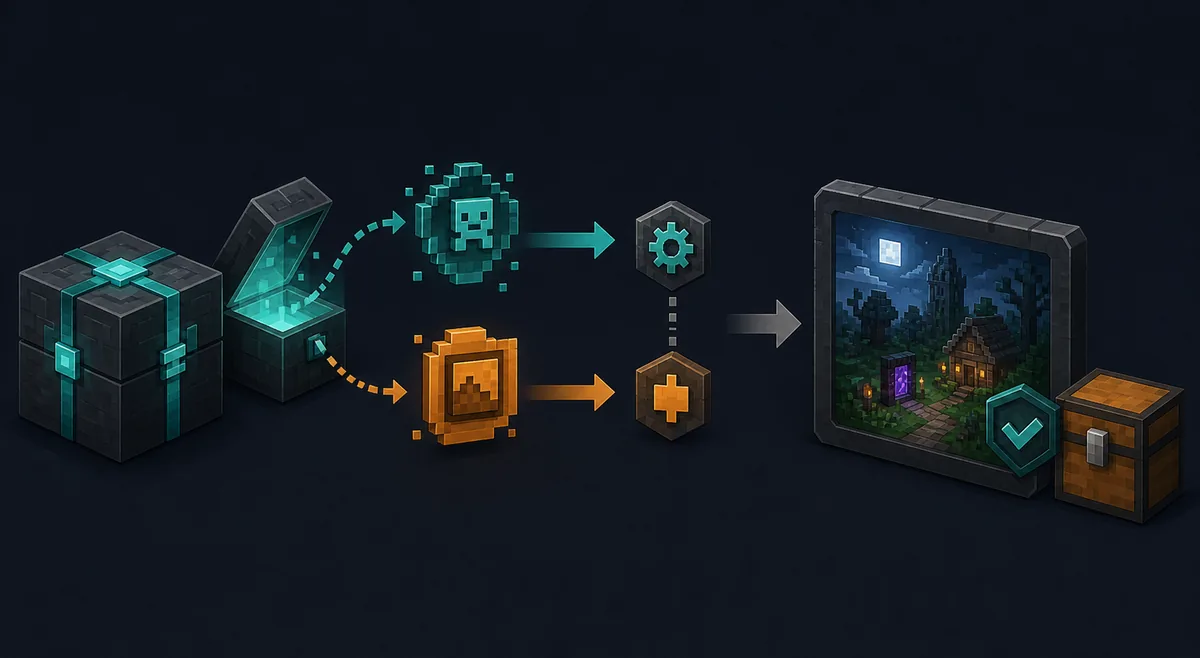
For a group, write one shared manifest before anyone joins: Minecraft version, loader build, mod versions, dependencies, server-side files, client-side files, resource packs, and configuration changes. The server and every client must satisfy the same requirements; a working single-player launch does not prove a multiplayer profile is ready.
Start with two players in a fresh test world. Check connection, entity spawning, sound and voice permissions, server tick time, memory, and save/reload behavior. Only move to a long-running world after the test passes and a rollback copy exists.
- Use the same Minecraft version and loader branch everywhere
- Give every client the same required mod and dependency versions
- Confirm whether each file is client-side, server-side, or both
- Test with two players before inviting the full group
- Keep a server backup and the last working manifest
Fix common Minecraft horror mod installation errors
When a mod is missing from the list, check that Minecraft launched the intended profile, the loader is correct, the file is in that profile's mods folder, and the file is a compiled release rather than source code. When the game crashes at startup, read the crash report and latest.log for a wrong version, missing dependency, duplicate mod, or Java runtime problem.
Bedrock import failures usually point to an invalid package, an unsupported Bedrock release, a missing behavior/resource component, or a file that was downloaded from a broken mirror. Multiplayer connection failures usually come from a manifest mismatch. Fix the first concrete error instead of adding random compatibility files.
| Symptom | First checks | Avoid |
|---|---|---|
| Mod does not appear | Profile, loader, folder, extension, dependency | Renaming a ZIP or copying files into every instance |
| Crash on launch | Crash report, latest.log, game version, duplicate files | Downloading an EXE or a random replacement JAR |
| Bedrock import fails | MCADDON/MCPACK integrity and Bedrock compatibility | Renaming a Java JAR to a Bedrock extension |
| Friends cannot join | Server/client manifest, loader, dependencies, configs | Changing several versions at once |
Update, remove, or roll back safely
Before an update, read the changelog, export or copy the world, and keep the last working profile. Change one major component at a time, launch a temporary world, and confirm that the loader recognizes only the intended version. Do not leave two versions of the same mod in the folder unless the developer explicitly supports it.
Removing a content mod can leave missing blocks, entities, dimensions, or configuration references in a save. If a world behaves differently after removal, restore the backup instead of repeatedly opening it with missing content.
Download and permission boundaries
A normal Minecraft horror mod workflow should make the destination, filename, version, loader, and package type visible. Be cautious when a page hides the host behind a countdown, asks for browser notifications, requests a Microsoft password, or replaces a JAR/MCADDON with an EXE or APK. Use the project's public release page and compare its metadata before opening a file.
This guide does not label every community project as official or safe. It gives you a repeatable way to inspect the source, isolate the profile, test a backup world, and stop when the file does not match the claimed platform.
Minecraft horror mod installation FAQ
Can I install a Minecraft horror mod without Forge or Fabric?
Only when the project is built for a different supported loader or is a Bedrock add-on. Java mods must use the loader named by their file page; a JAR cannot be made compatible by renaming it.
How do I install horror mods in Minecraft with friends?
Create one shared manifest for the server and every client, match the Minecraft version, loader, mod files, dependencies, and configs, then test with two players in a new world before moving to a main save.
Can I use a Java horror mod on Minecraft Bedrock?
No. Java JAR files and Bedrock MCADDON or MCPACK packages belong to different ecosystems. Use a Bedrock-specific add-on and follow the Bedrock activation steps.
Which Minecraft version should I use for a horror mod?
Use the exact game version listed on the current project file page. Do not assume that 1.20, 1.20.1, 1.20.2, or a newer release are interchangeable.
Why does my horror mod not appear in Minecraft?
The common causes are the wrong profile, loader, game version, mods folder, file type, or a missing dependency. Check those in order, then read latest.log before changing anything else.
Should I install several horror mods at once?
Start with one major content mod in a clean profile and test a new world. Add other mods only after startup, generation, performance, saving, and multiplayer checks pass.
Installation references
- Fabric official: Installing ModsOfficial Fabric player documentation for matching a Fabric profile and adding mods.
- Minecraft Forge downloadsOfficial Forge distribution page for selecting the required Minecraft version.
- Verity JE on ModrinthCurrent project page used for the site's verified release and loader checks.
- CurseForge installation helpPlatform help for the standard Forge installation path; always match the individual project's file metadata.